


How to install eSIM on iPhone via QR Code?
Before you begin, please make sure your iPhone:
- Supports eSIM (see What phone devices support eSIM?)
- Is fully carrier-unlocked
- Has a stable internet connection (preferably Wi-Fi)
Install eSIM via QR Code on iPhone
-
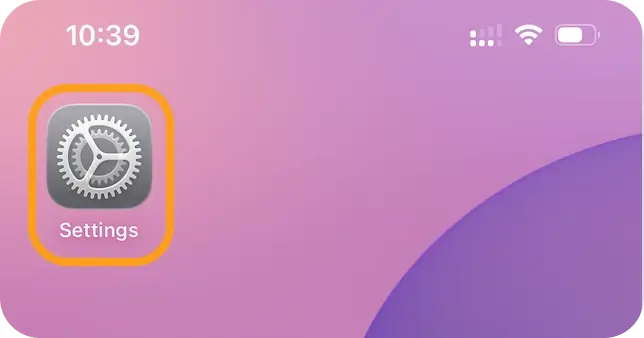
Open Settings.
-
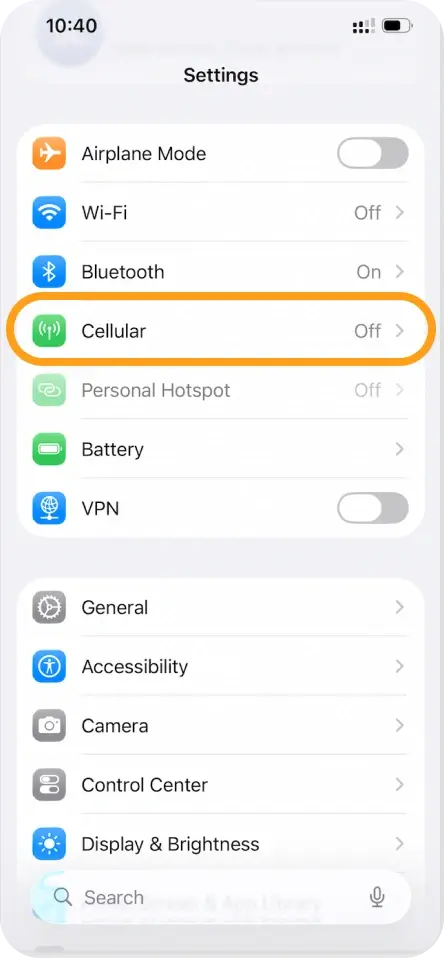
Tap Cellular (or Mobile Data).
-
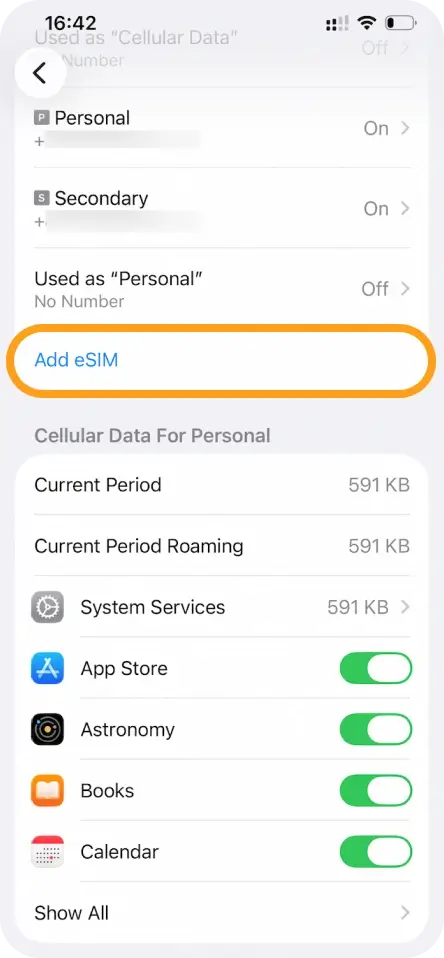
Tap Add eSIM (or Add Cellular/Mobile Data Plan).
-
Select Use QR Code.
-
Scan the QR code provided by eSIMNum.
-
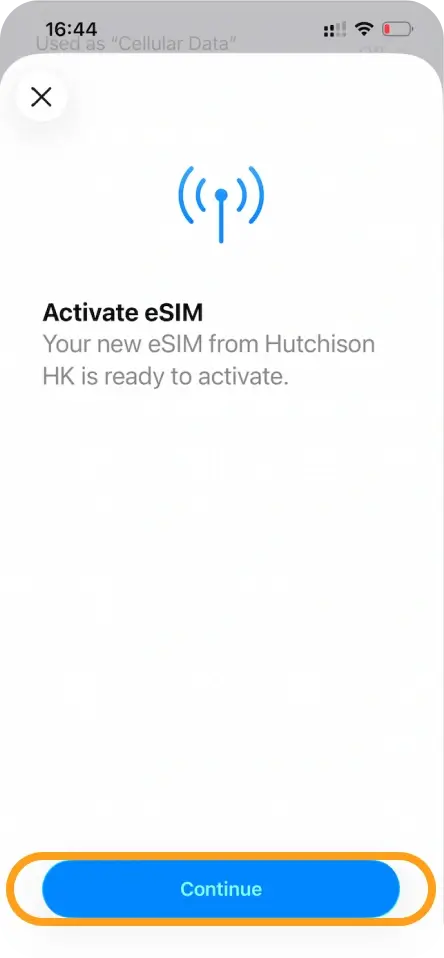
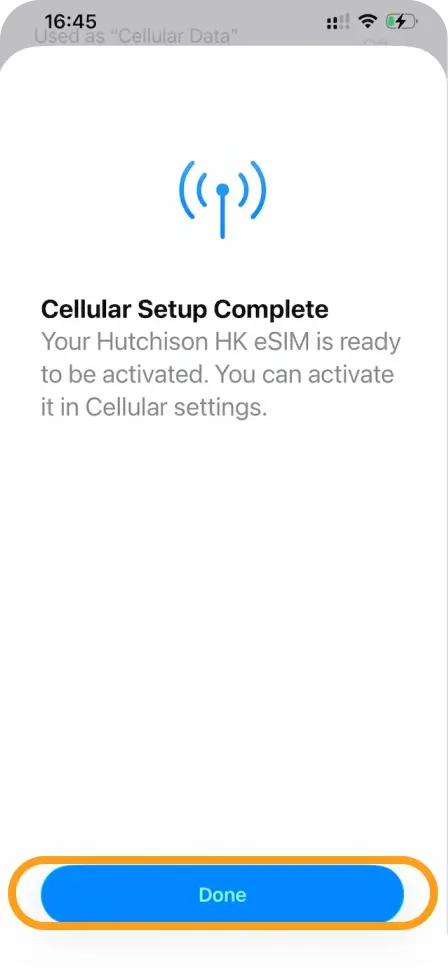
Tap Continue and wait for activation to complete.
-
Tap Done once the eSIM is installed.
-
Choose a label for your eSIM (e.g., “eSIMNum”).
Set Your eSIM for Data Usage
Once installed:
-
Go to Settings > Cellular / Mobile Data.
-
Select your eSIMNum plan.
-
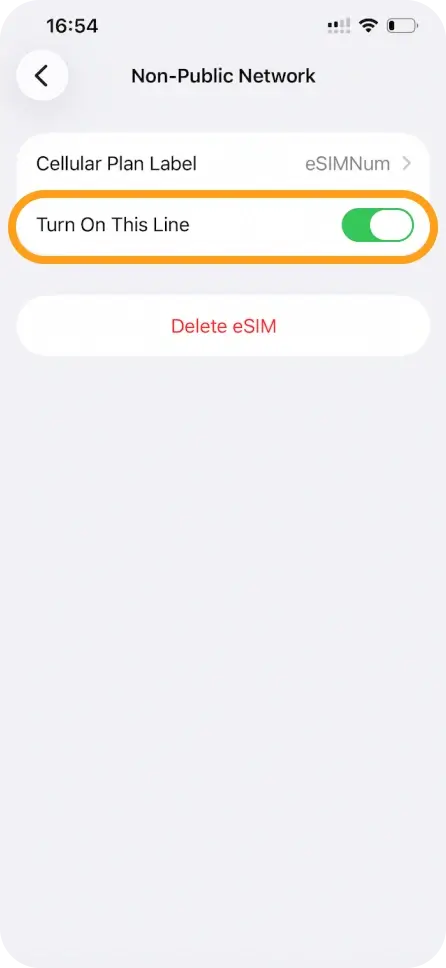
Ensure Turn On This Line is enabled.
-
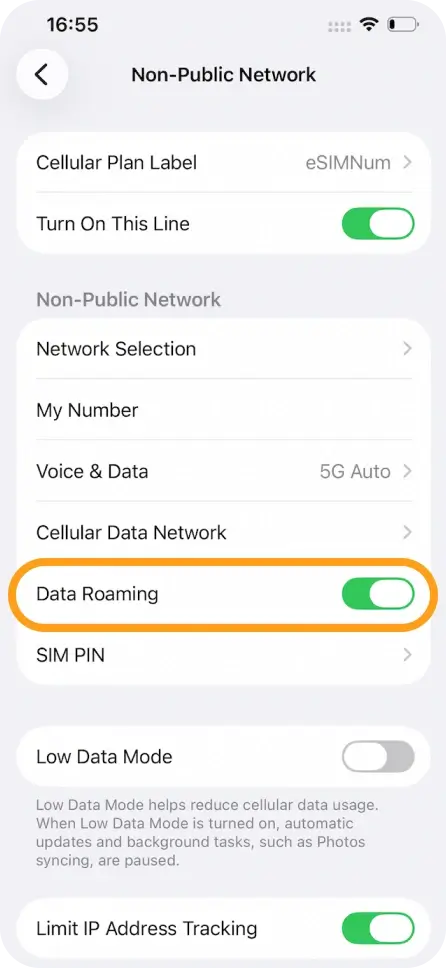
Enable Data Roaming (if required based on your eSIM instructions).
-
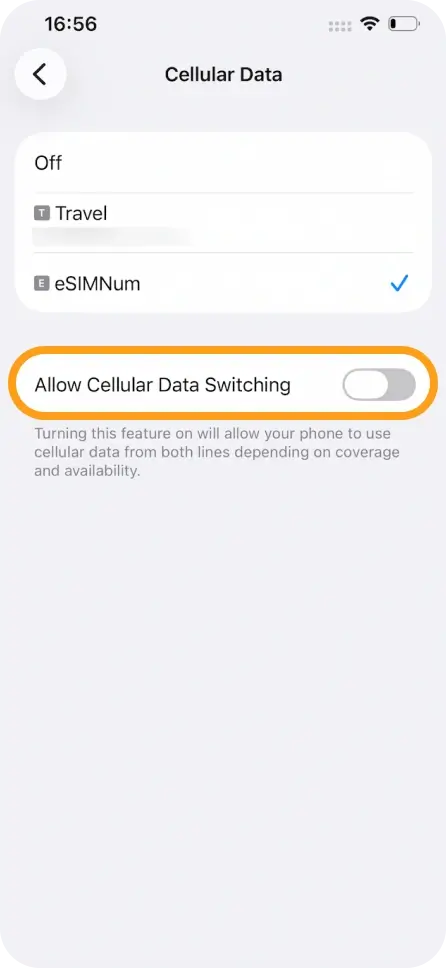
Set eSIMNum as your Cellular Data line.
-
Keep Allow Cellular Data Switching OFF to avoid using other lines.
Your eSIMNum plan will automatically connect to an available supported network.
If you experience any issues during installation or activation, feel free to contact eSIMNum Support. We’re always here to assist.