


How do I fix slow speed issues on eSIMNum for Google Pixel devices?
Slow network speeds on your Google Pixel while using an eSIMNum plan can happen due to factors like network congestion, coverage limitations, or temporary signal issues. Here are steps to troubleshoot and improve your connection:
Toggle Airplane Mode
Refreshing your network connection often resolves temporary speed issues.
-
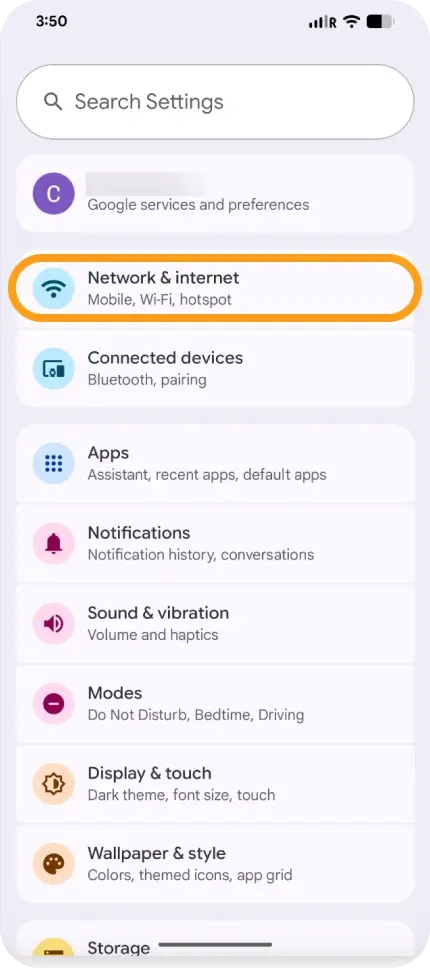
Go to Settings → Network & Internet
-
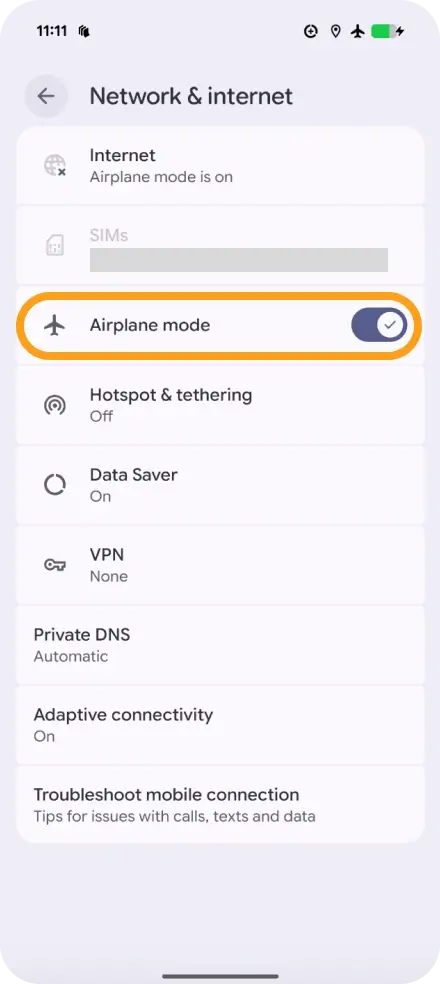
Toggle Airplane Mode ON
-
Wait about 15 seconds
-
Toggle Airplane Mode OFF
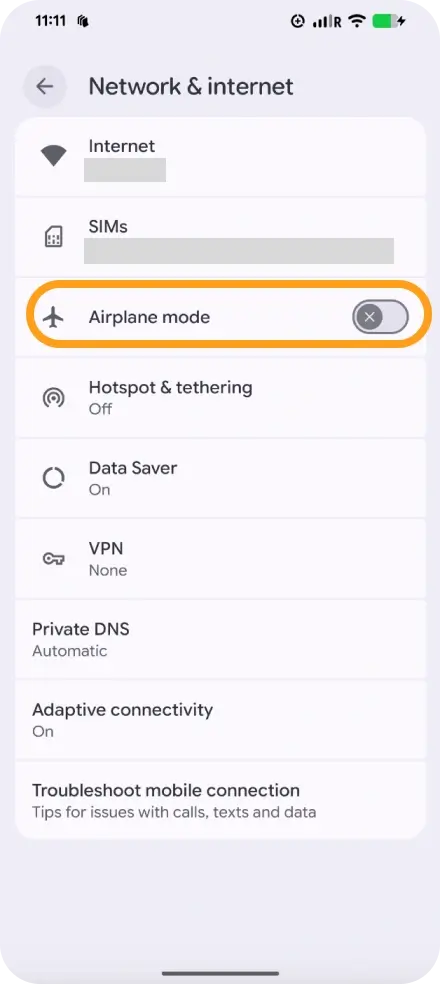
This forces your device to reconnect to the network.
Check Mobile Data and Roaming
- Make sure Mobile Data is enabled.
- If you are abroad, ensure Data Roaming is turned ON for your eSIMNum plan.
Restart Your Device
Restarting your Pixel can help clear temporary glitches affecting speed.
Check Coverage and Congestion
- eSIMNum speed may be slower in areas with poor coverage.
- Network congestion can also temporarily reduce speeds. Moving to a different location may improve performance.
Reset Network Settings (if needed)
If the above steps don’t help:
- Go to Settings → System → Reset options → Reset Wi-Fi, mobile & Bluetooth
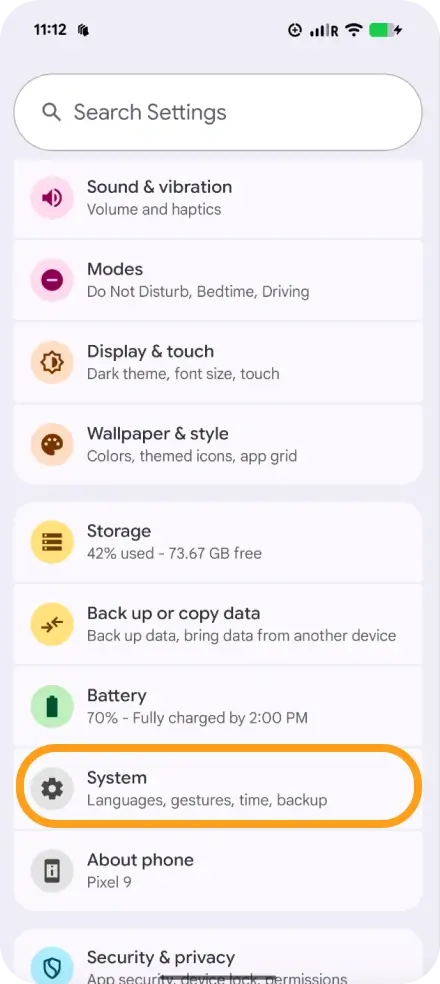
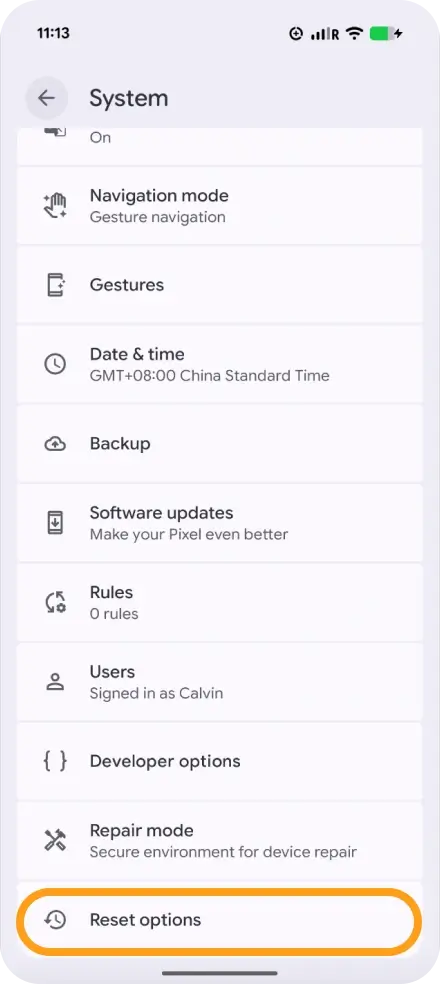
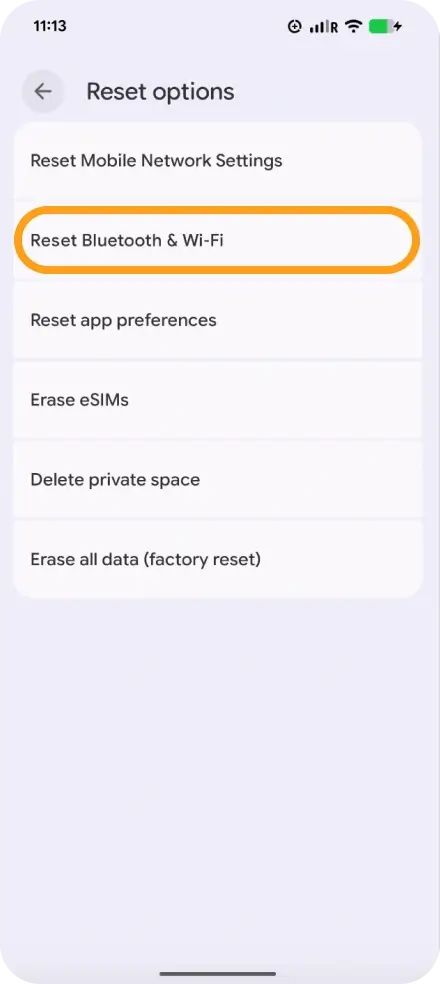
- This resets all network connections and may resolve persistent slow speed issues.
If you continue to experience slow speeds after these steps, please contact our support team, and we’ll help troubleshoot further.