


How to manually activate esim on iphone (13/14/15/16/17)
-
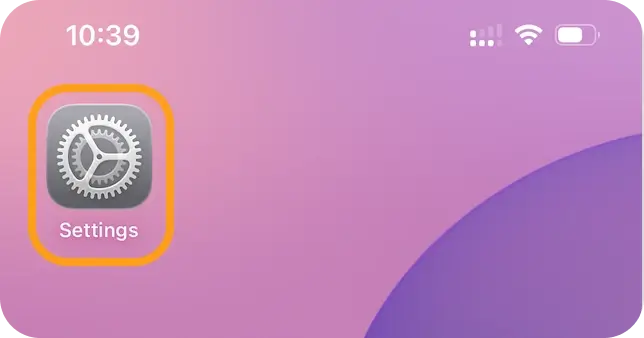
Open Settings on your iPhone.
-
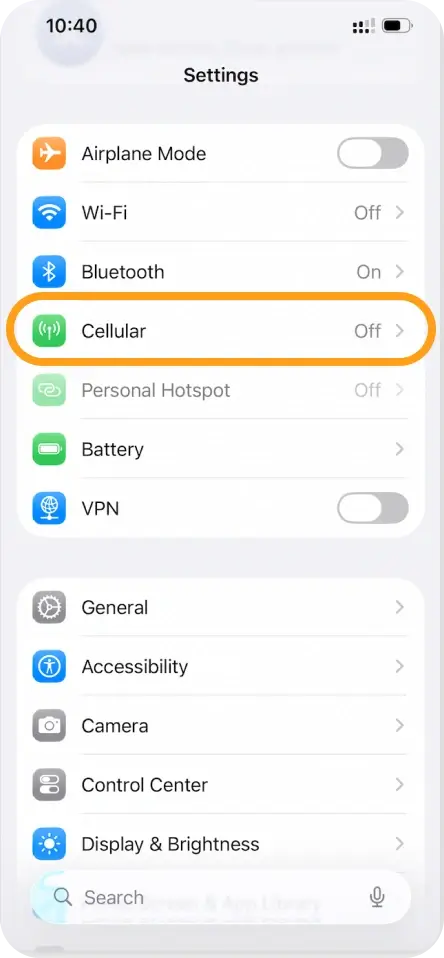
Tap Cellular (or Mobile Data).
-
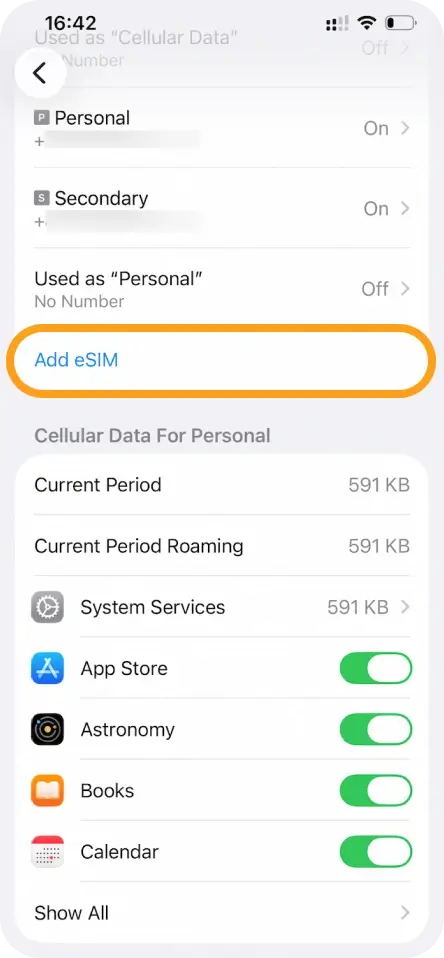
Tap Add eSIM (or Add Cellular/Mobile Data Plan).
-
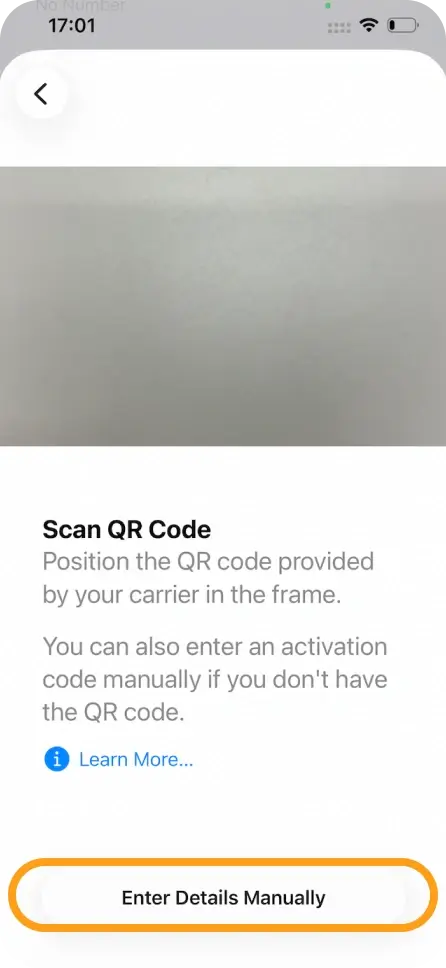
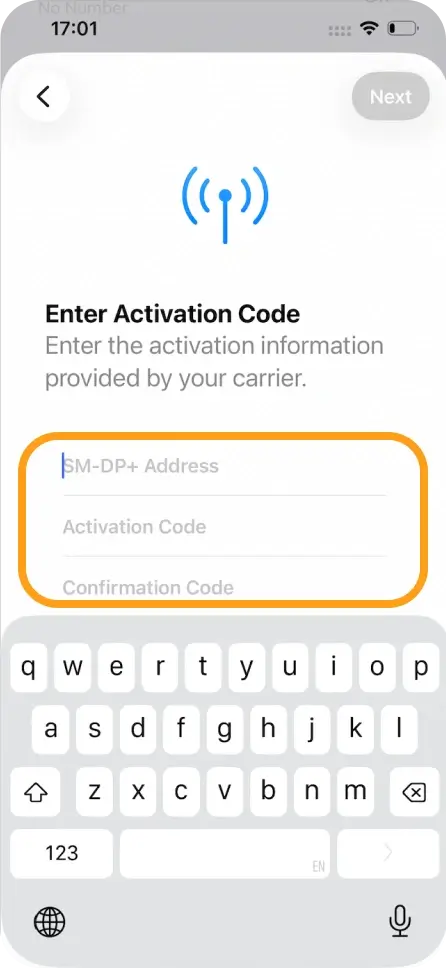
Select Use QR Code, then tap Enter Details Manually.
-
Enter the SM-DP+ Address, Activation Code, and Confirmation Code (if provided).
-
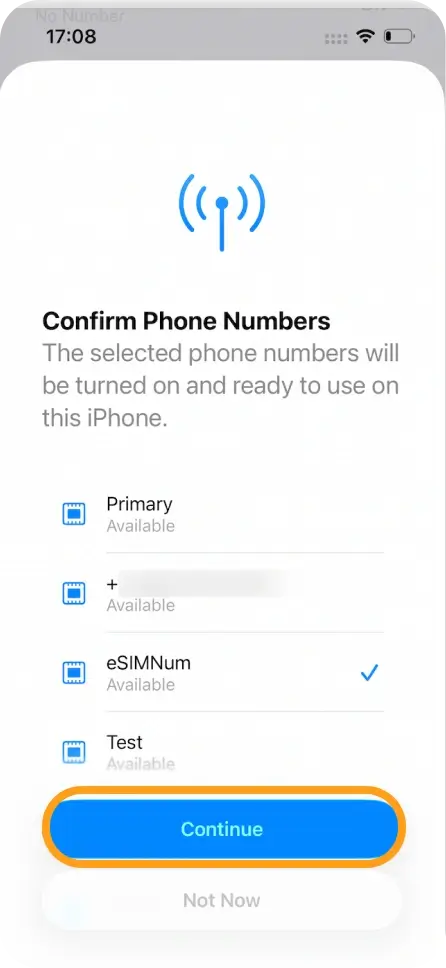
Tap Next, then tap Continue to start activation.
-
Wait a few moments for the eSIM to complete activation.
-
Tap Done when the installation is finished.
-
Choose a label for your eSIM (e.g., “eSIMNum”).
Set Up Mobile Data for eSIMNum
-
Go to Settings > Cellular / Mobile Data.
-
Select your eSIMNum plan.
-
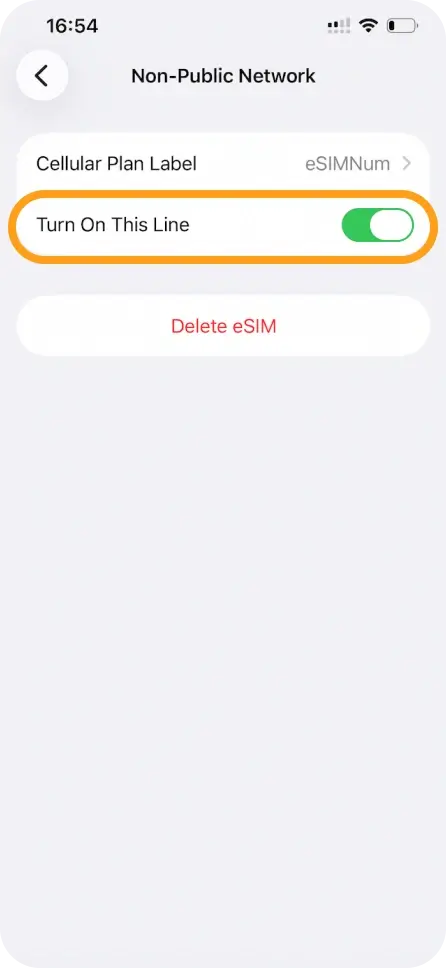
Ensure Turn On This Line is enabled.
-
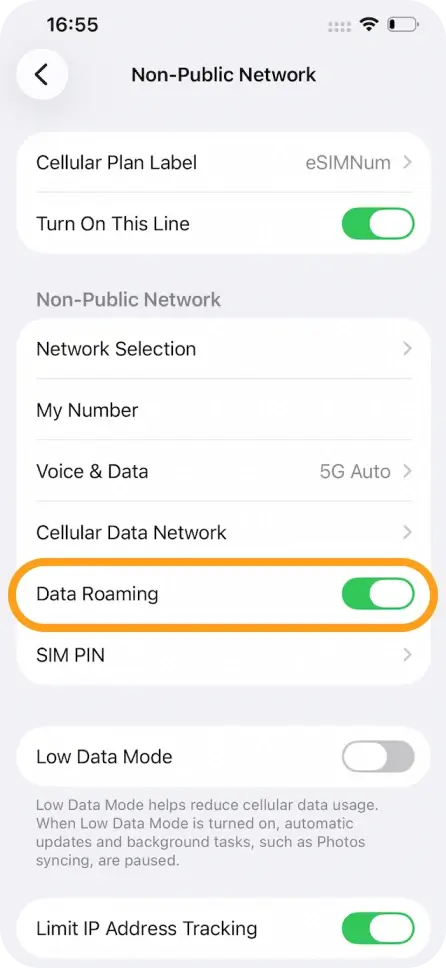
Switch Data Roaming ON (if required by your plan).
-
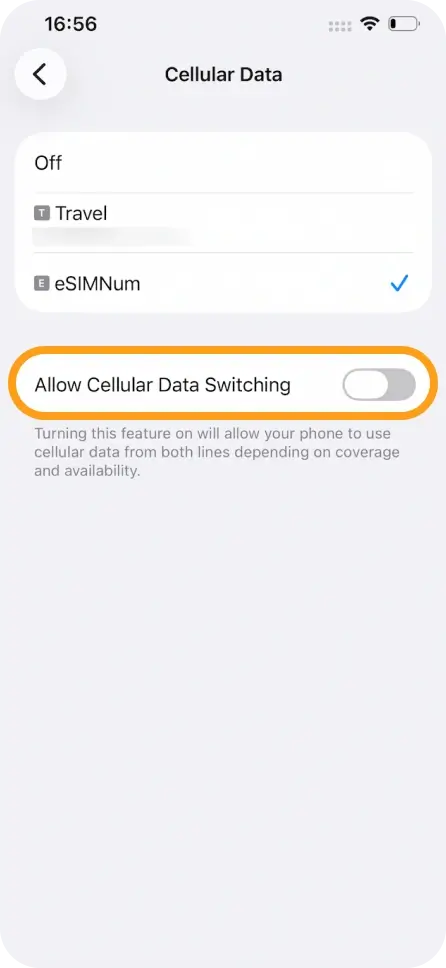
Go to Cellular/Mobile Data and set eSIMNum as your data line.
-
Keep Allow Cellular Data Switching OFF for a stable connection.
Your eSIMNum plan should now automatically connect to a supported network.
If you encounter activation issues or need step-by-step guidance, please contact eSIMNum Support — our team is always happy to assist.