


How to install eSIM on Samsung via QR Code?
Before you begin, please make sure your Samsung device supports eSIM and is carrier-unlocked. Most recent Samsung Galaxy models support eSIM, but compatibility may vary depending on your region and carrier.
Where to Find Your eSIM QR Code on eSIMNum
You can easily access your eSIM details and QR code from the eSIMNum web portal:
-
Log in to your eSIMNum account.
-
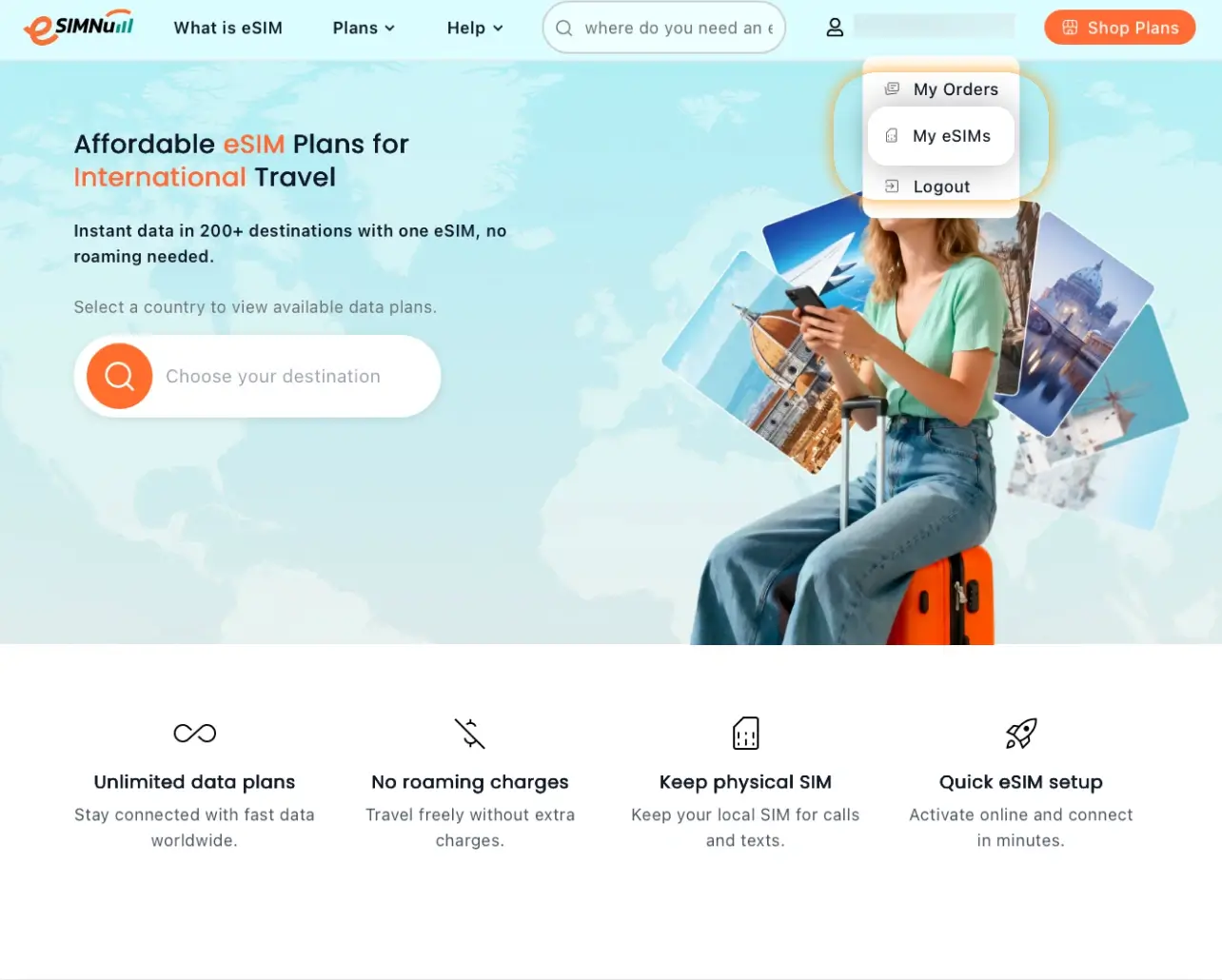
Click your Profile icon at the top right.
-
Select My eSIMs.
-
Choose your eSIM and click View Details.
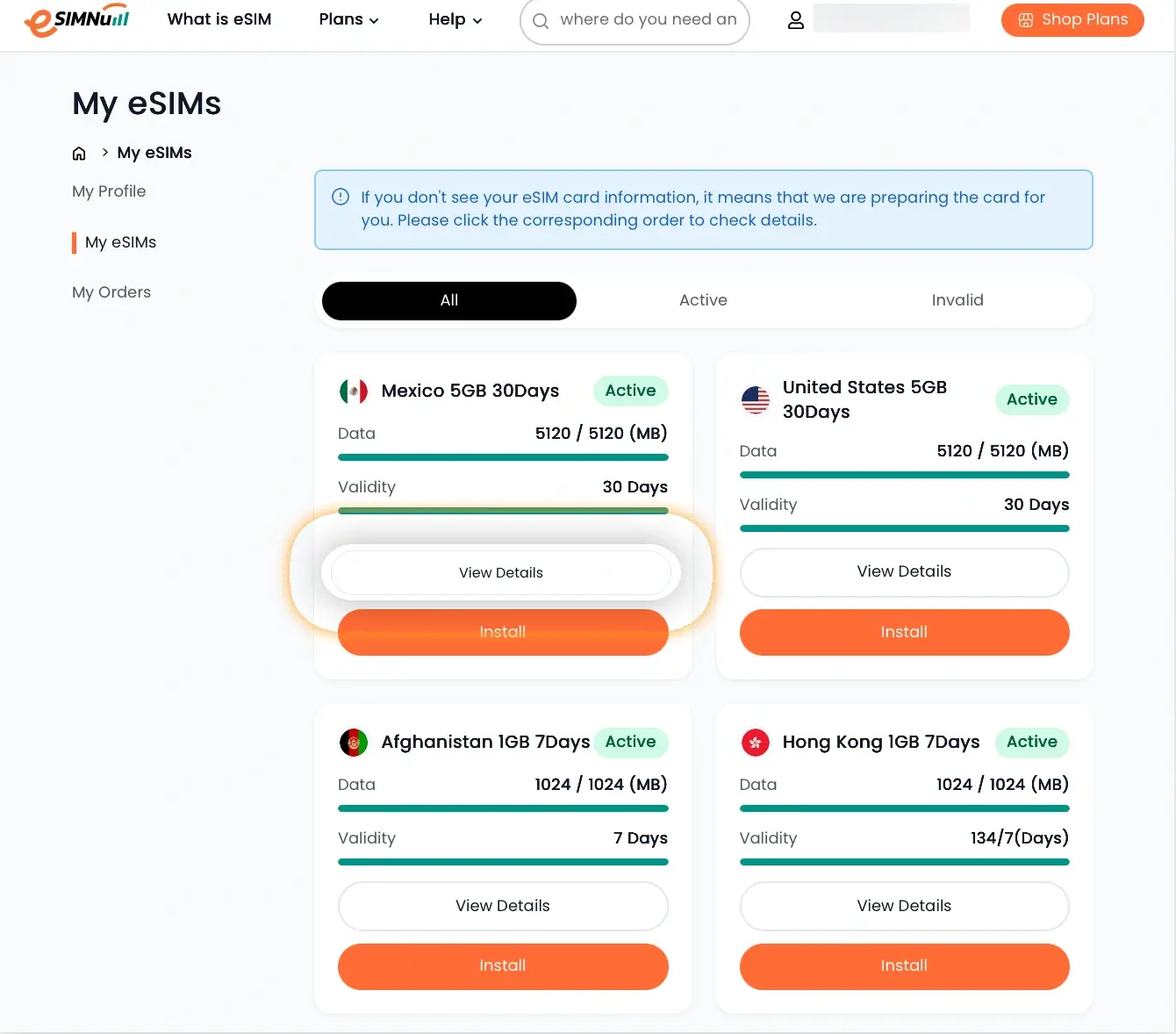
Here, you will find your QR code and full installation instructions.
How to Install Your eSIM via QR Code on Samsung Galaxy
Follow the steps below to install your eSIM using the QR code:
-
Open the eSIMNum webpage and keep the QR code on your screen (or take a screenshot for easy access).
-
Open your Samsung Settings.
-
Go to Connections.
-
Tap SIM manager.
-
Select Add eSIM.
-
Choose Scan QR code.
-
Point your camera at the QR code —or— Tap the Gallery/Photos icon and select the QR code screenshot.
-
Follow the on-screen prompts and tap Add.
-
Wait a few moments for the eSIM to activate.
How to Enable Mobile Data for Your eSIM
-
Open Settings > Connections.
-
Tap Mobile networks.
-
Select your newly installed eSIM as the mobile data line.
-
Turn on Data roaming if required by your plan.
-
If needed, update your APN settings.
If you encounter any issues during setup or activation, please reach out to eSIMNum Support. We’re always here to help.