


How to install eSIM on Pixel via QR Code?
Installing an eSIM on a Google Pixel device is quick and straightforward. Follow the steps below to set up your eSIMNum profile and get connected in minutes.
Before You Start
Please make sure you have:
- A stable Wi-Fi connection.
- Your eSIMNum QR code, found under Profile → My eSIMs → View Details.
- An eSIM-compatible and unlocked Google Pixel device.
If one installation method does not work, you can try again or use the manual activation option (if supported by your device).
How to Install Your eSIM on Google Pixel Using a QR Code
-
Open Settings on your Pixel.
-
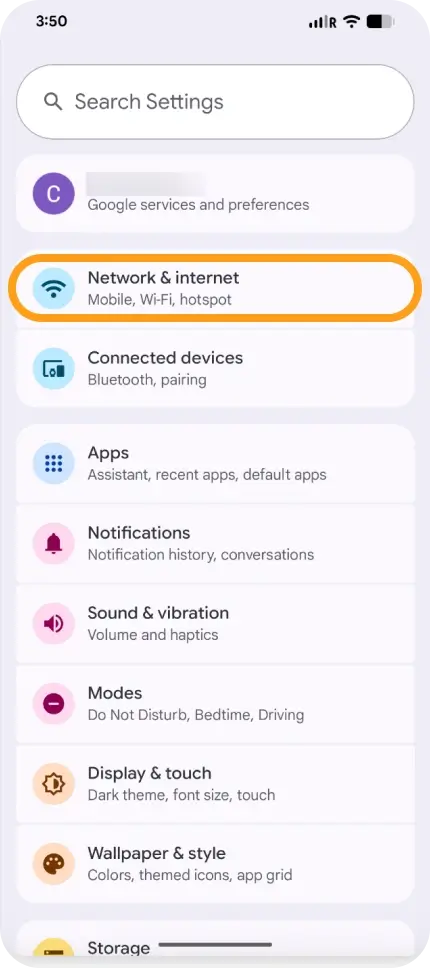
Tap Network & Internet.
-
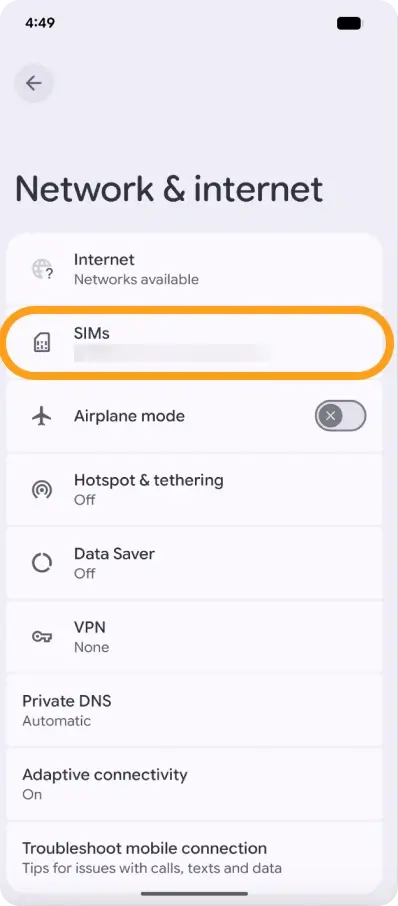
Tap the SIMs.
-
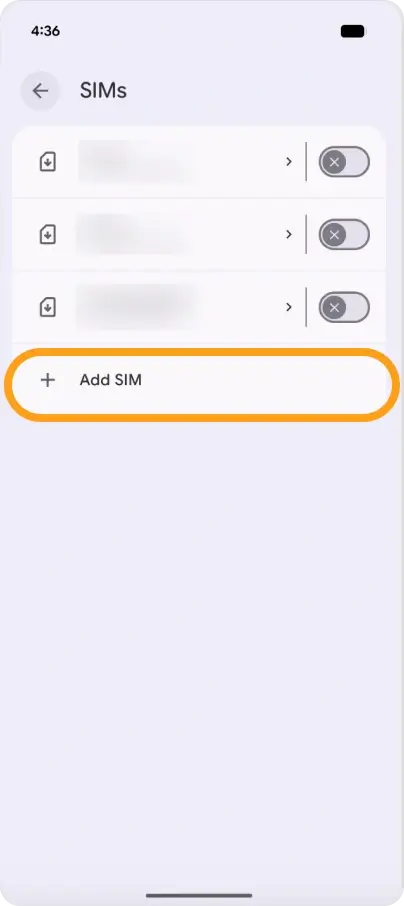
Select Download a SIM instead? or Add eSIM (wording may vary by Pixel model).
-
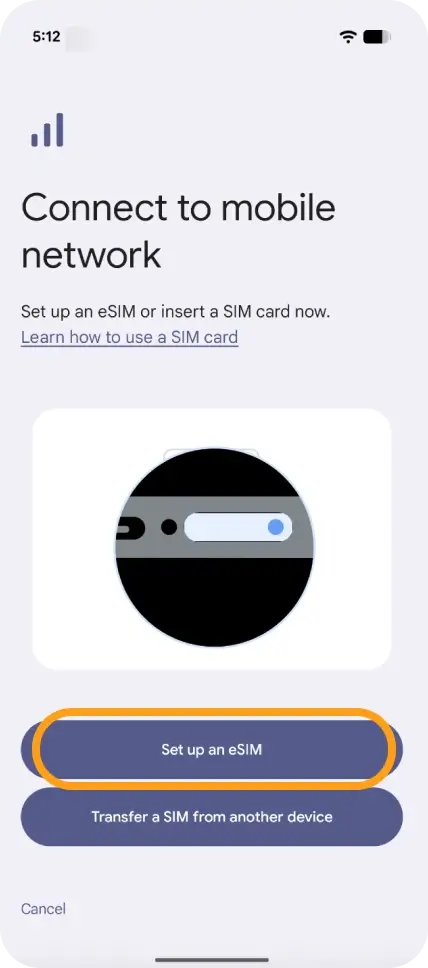
Choose Set up an eSIM.
-
Point your camera at the QR code shown on your eSIMNum View Details page.
-
Follow the on-screen instructions to download and Activate the eSIM.
The installation usually takes a few moments. Once complete, your eSIM will appear in your device’s SIM list.
Need to Connect to Mobile Data?
After installation:
-
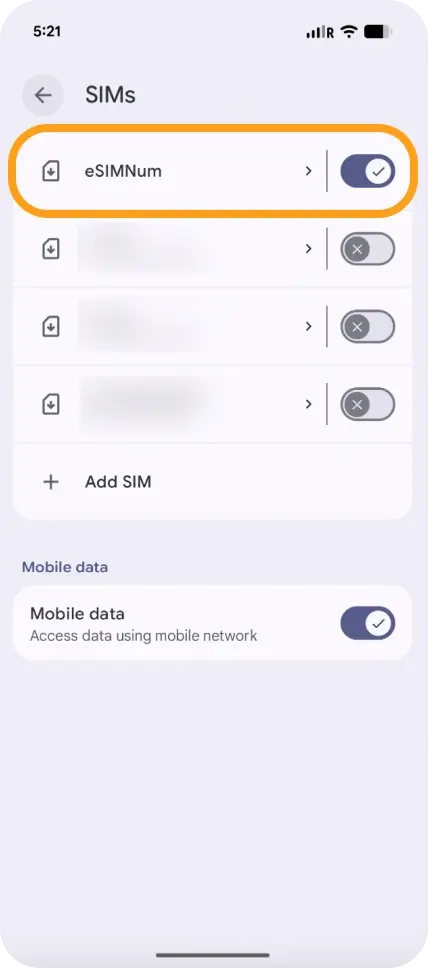
Go to Settings → Network & Internet.
-
Select your eSIMNum profile.
-
Turn on Mobile data.
-
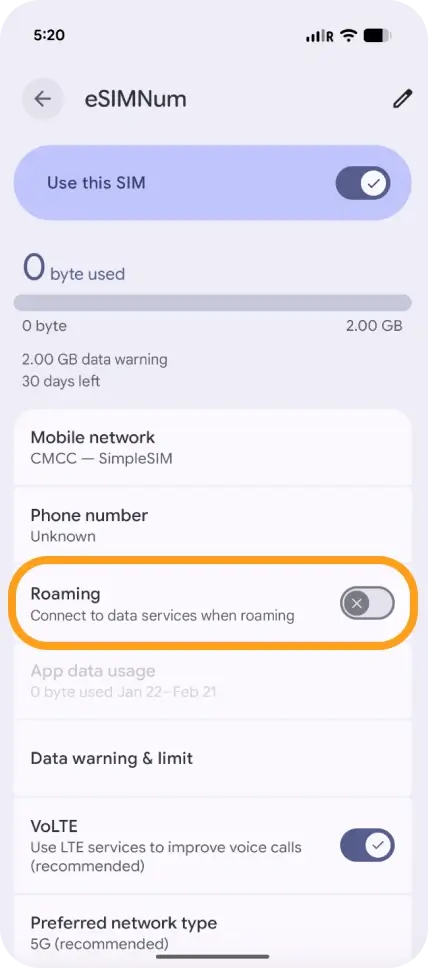
Enable Data roaming if required for your plan.
-
Update APN settings if needed.
If you experience any issues during installation or activation, feel free to contact eSIMNum Support. We’re always here to assist.