


How to resolve iOS eSIM no net problems?
If your eSIMNum is not connecting on an iPhone, follow the steps below in order. Most issues are resolved by confirming activation, enabling roaming, or adjusting network mode.
Confirm your eSIMNum plan is activated
Go to Settings > Cellular and check that your eSIM profile appears and is turned On. Also confirm your plan is valid in your current country or region.
Turn off Wi-Fi
Go to Settings > Wi-Fi and turn it Off to force mobile network registration.
Ensure the eSIM line is active and selected for mobile data
-
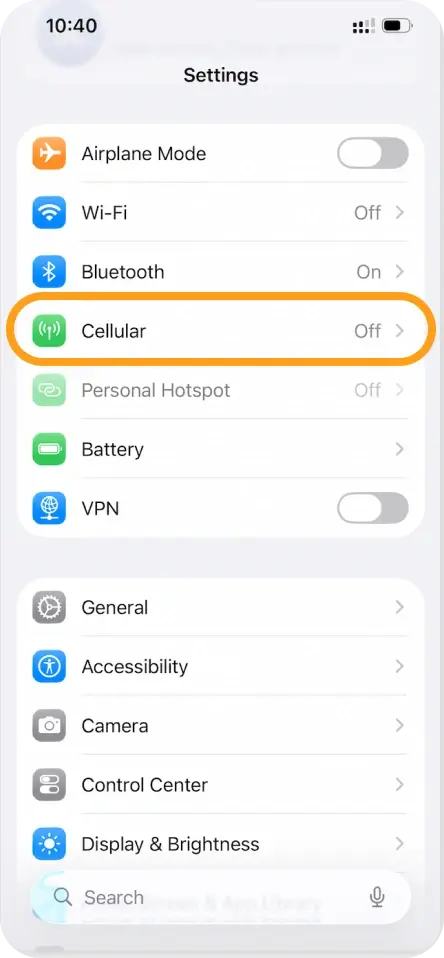
Go to Settings > Cellular
-
Tap your eSIM
-
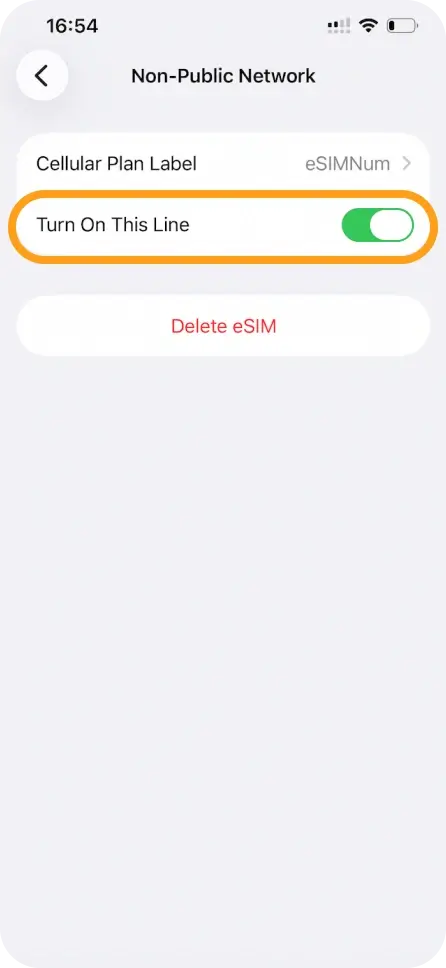
Verify Turn On This Line is enabled
-
Return to Cellular Data and select your eSIM as the data line
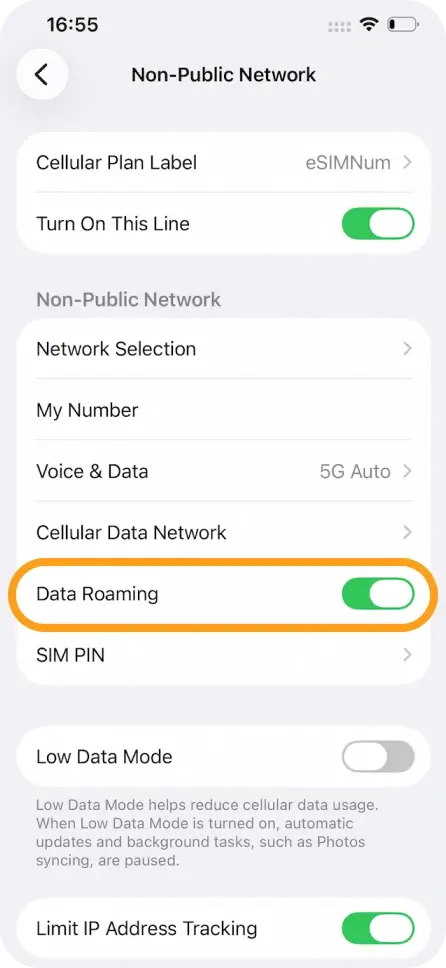
Enable Data Roaming
Most eSIMNum plans require roaming to be On. Go to Settings > Cellular > Your eSIM > Data Roaming and turn it On.

Restart your iPhone
Restarting often completes network registration.
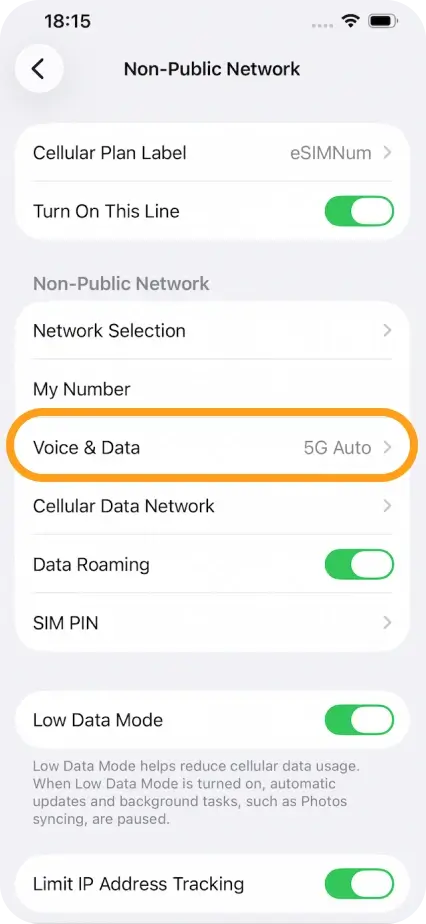
Switch from 5G to 4G/LTE
Some networks do not authenticate roaming connections on 5G. Go to Settings > Cellular > Your eSIM > Voice & Data and select LTE / 4G.
Toggle Airplane Mode
Turn on Airplane Mode for 15 seconds, then turn it Off.
Configure APN (if required)
Certain regions require manual APN configuration. Go to Settings > Cellular > Your eSIM > Cellular Data Network.
APN: esim Leave all other fields blank.
Manually select a carrier
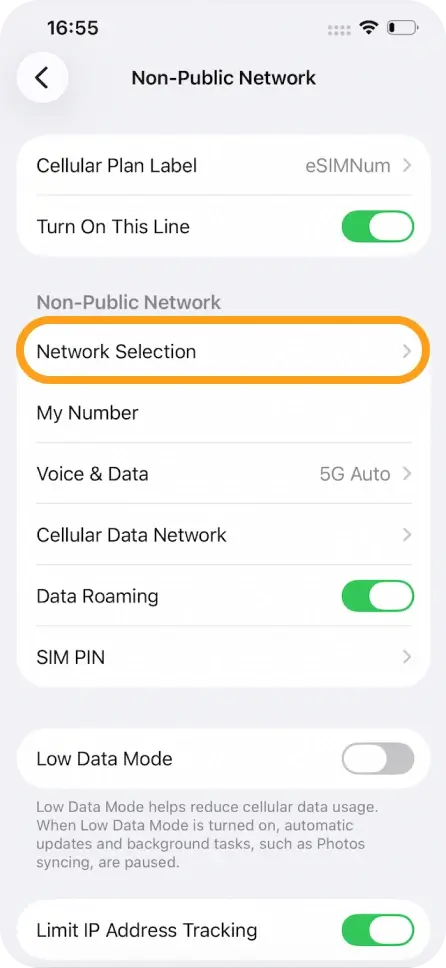
Go to: Settings > Cellular > Your eSIM > Network Selection Turn off Automatic and choose the recommended carrier.
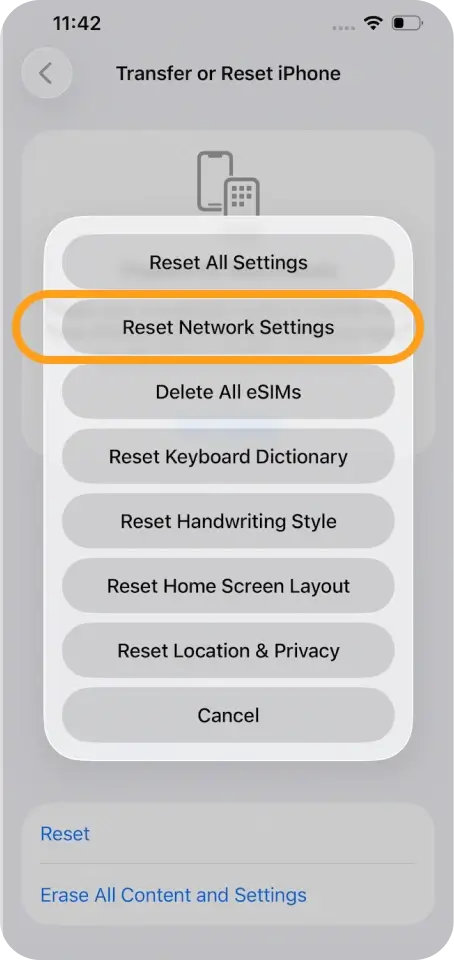
Reset network settings (last option)
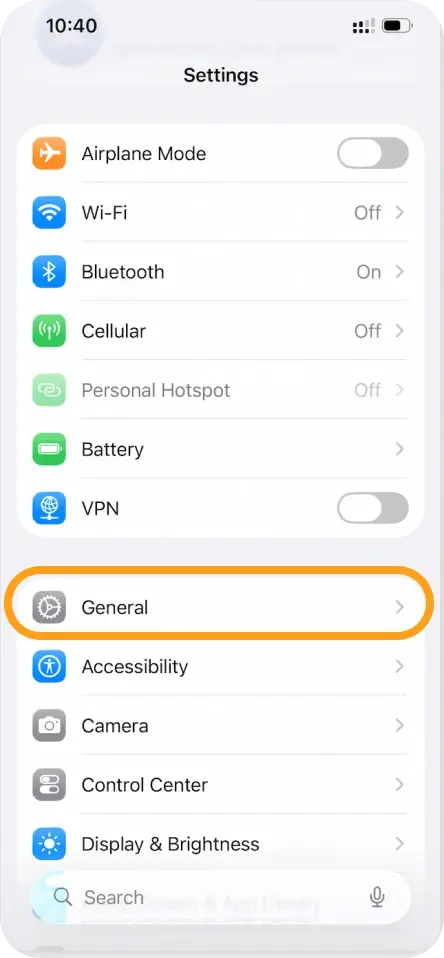
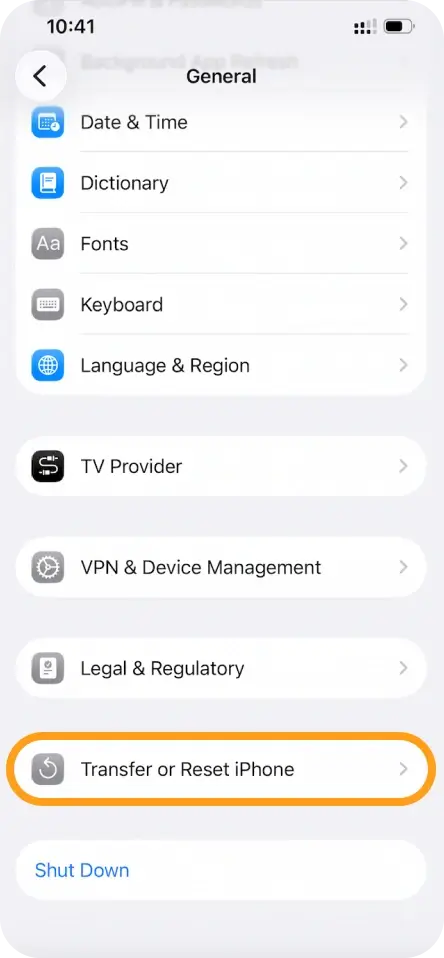
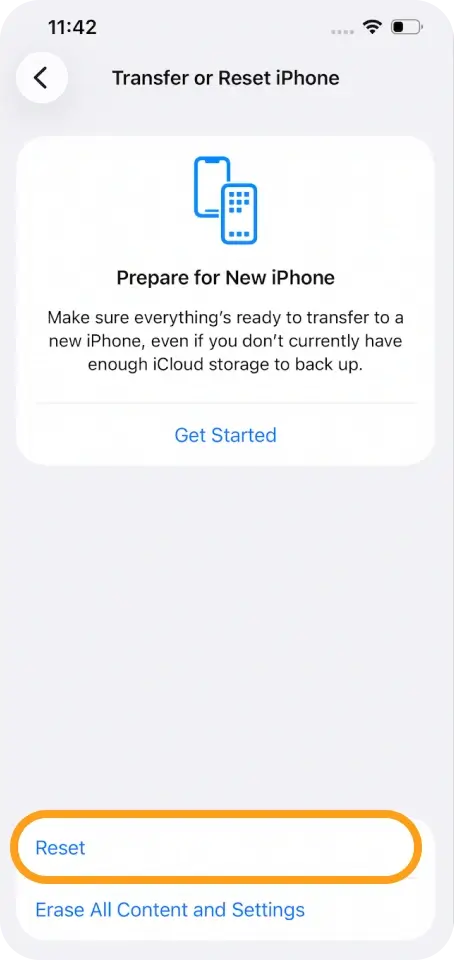
Go to: Settings > General > Transfer or Reset iPhone > Reset > Reset Network Settings After resetting, re-enable Data Roaming and APN if needed.
If the issue persists, feel free to contact our eSIMNum support team.