


What should I do if my eSIM QR code won’t scan?
If your eSIM QR code won’t scan, you can install your eSIM manually. Every eSIMNum plan includes manual installation details that let you activate your eSIM without using the camera.
You can find these details under My eSIM on the eSIMNum website. Here’s how to enter them manually:
On iOS
-
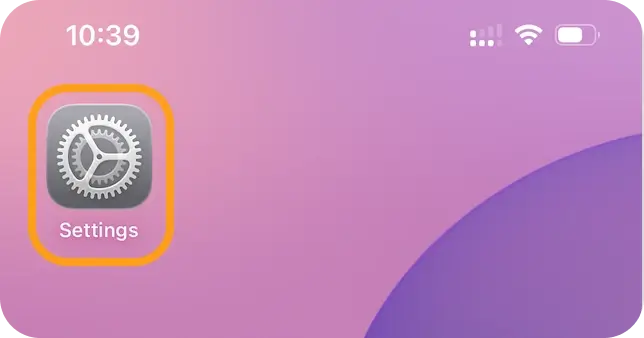
Open Settings
-
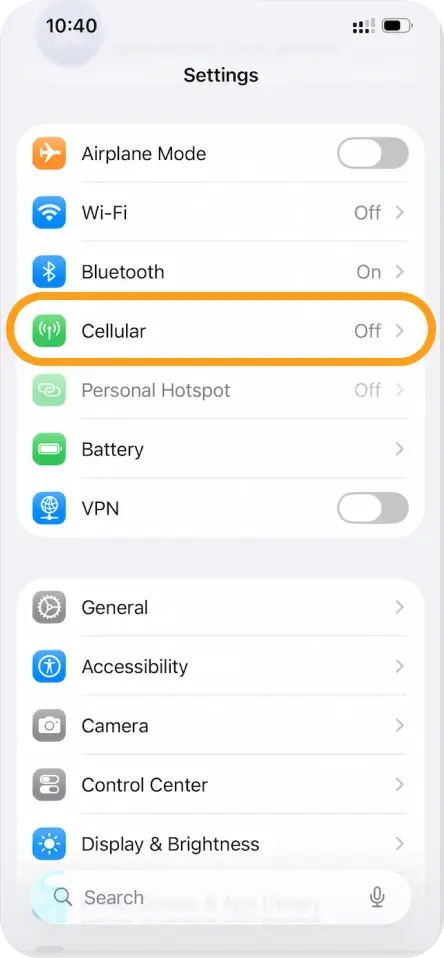
Tap Cellular / Mobile Data
-
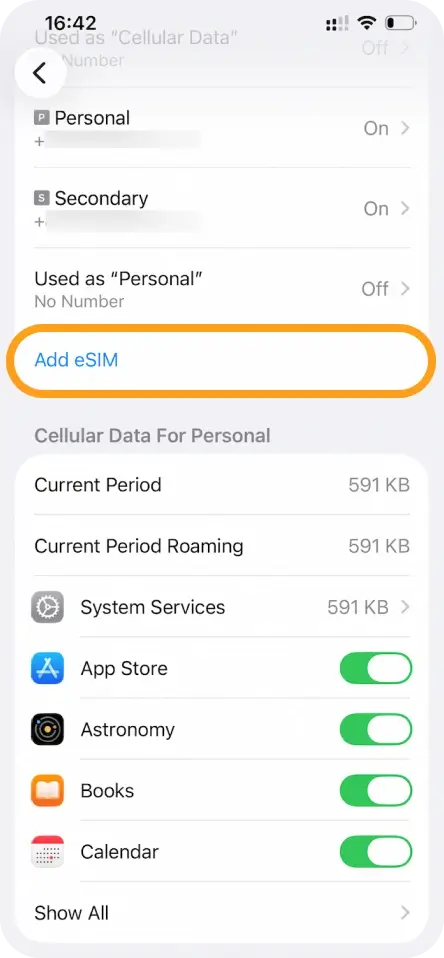
Tap Add eSIM
-
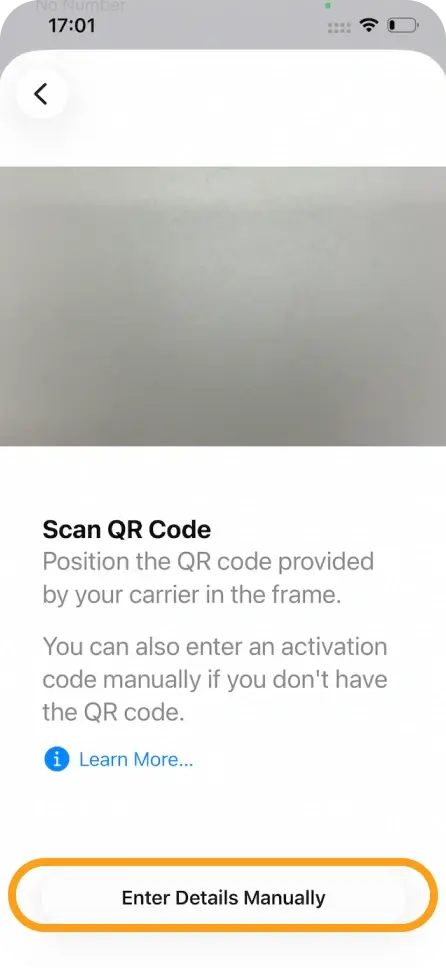
Select Enter Details Manually
-
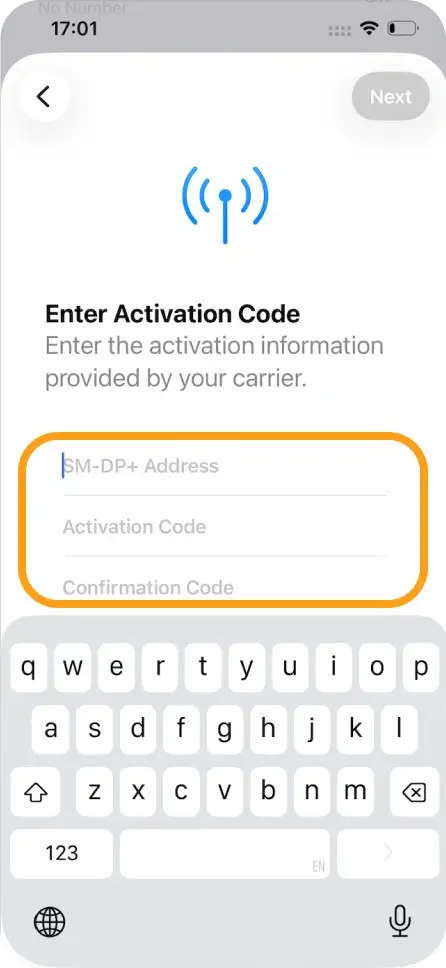
Enter the following information:
- SM-DP+ Address
- Activation Code
- Confirmation Code (if provided)
-
Turn on your eSIM under Cellular Plans
-
Set it as your Cellular/Mobile Data line
-
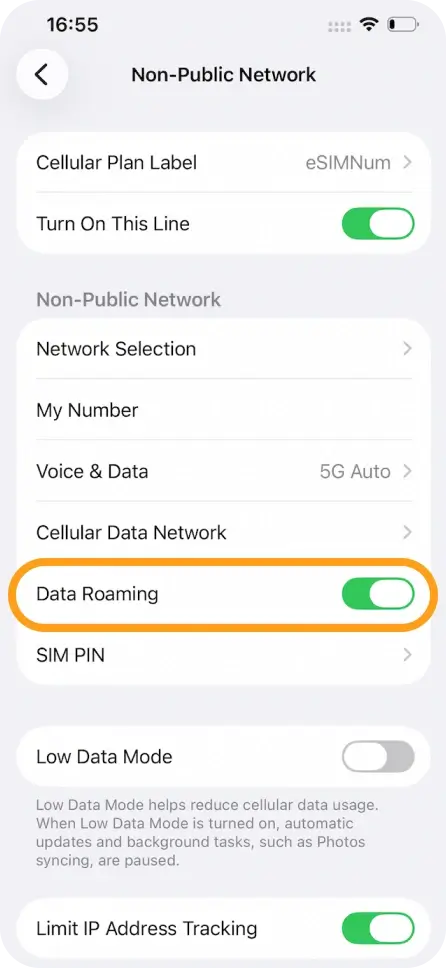
Enable Data Roaming
-
If required, enter the APN details found in your installation information
On Android
-
Open Settings
-
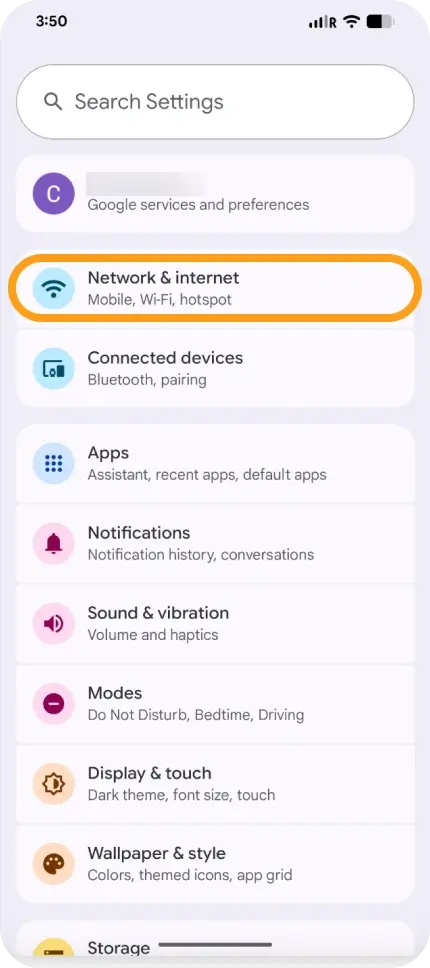
Tap Network & Internet
-
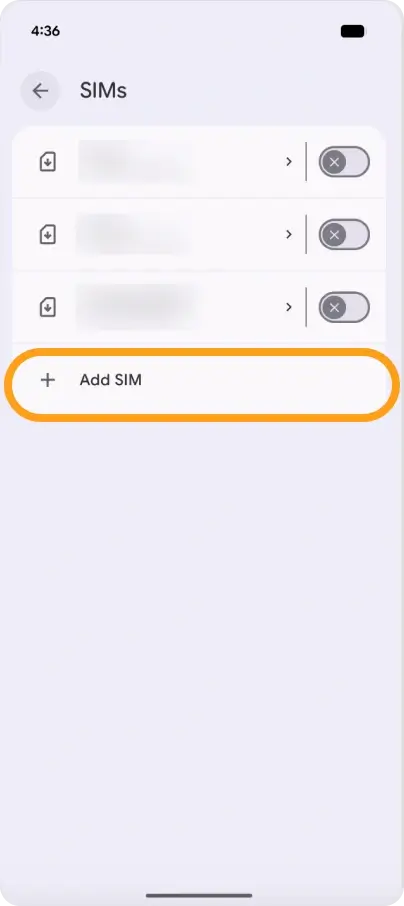
Tap + Add SIM
-
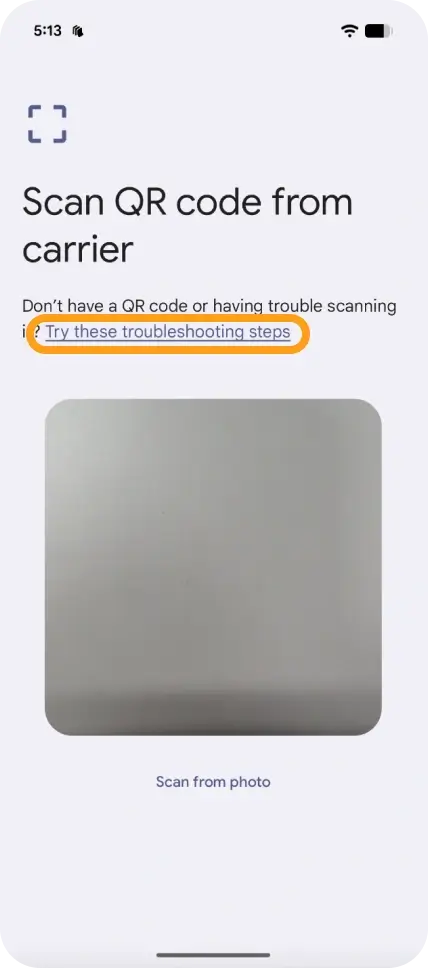
When prompted, tap Try these troubleshooting steps
-
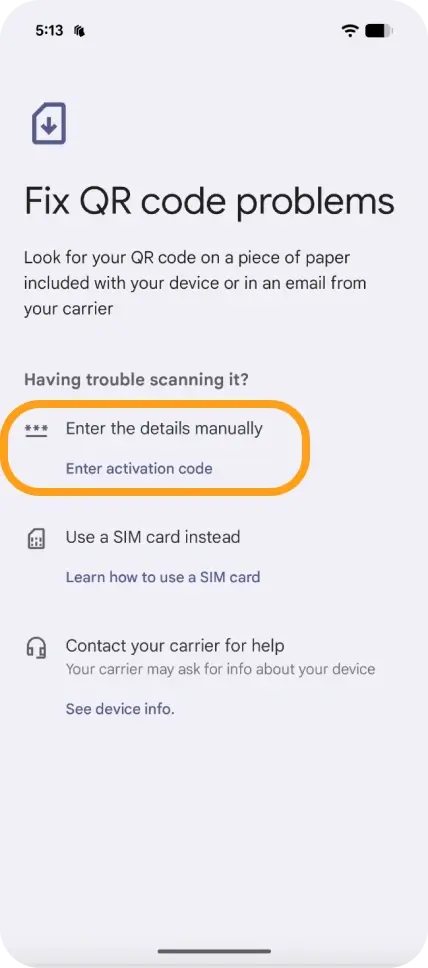
Tap Enter Code Manually
-
Enter your SM-DP+ Address and other required details
-
Turn on your eSIM
-
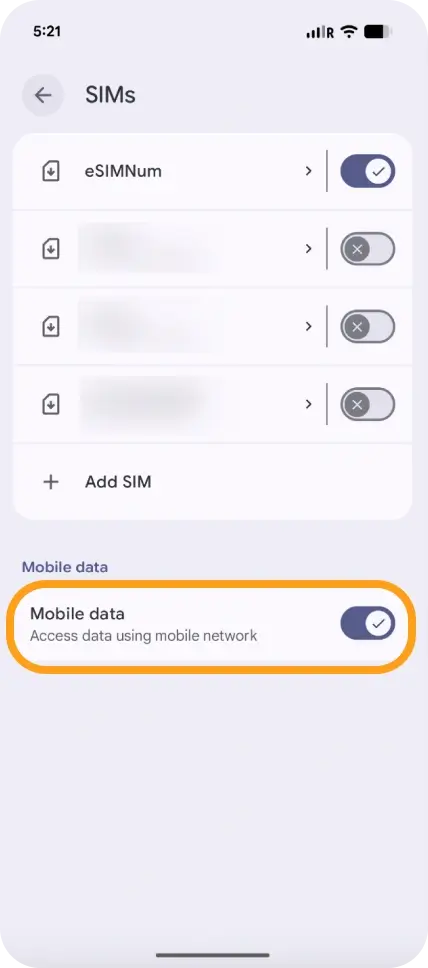
Enable Mobile Data
-
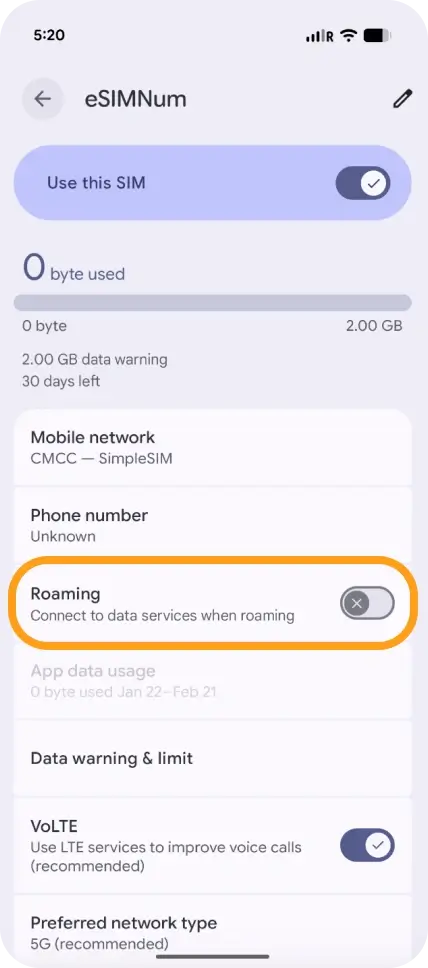
Enable Data Roaming
-
If required, enter the APN settings provided in your installation details
If you need help completing these steps, please contact our support team—we’re always here to assist.