


How do I track my data usage on the website?
You can easily monitor your current data usage and manage your plan directly from the eSIMNum website, as well as control data usage on your iOS or Android devices. Follow the steps below to stay on top of your usage:
Track data usage on the eSIMNum website
-
Visit the eSIMNum website and sign in to your account.
-
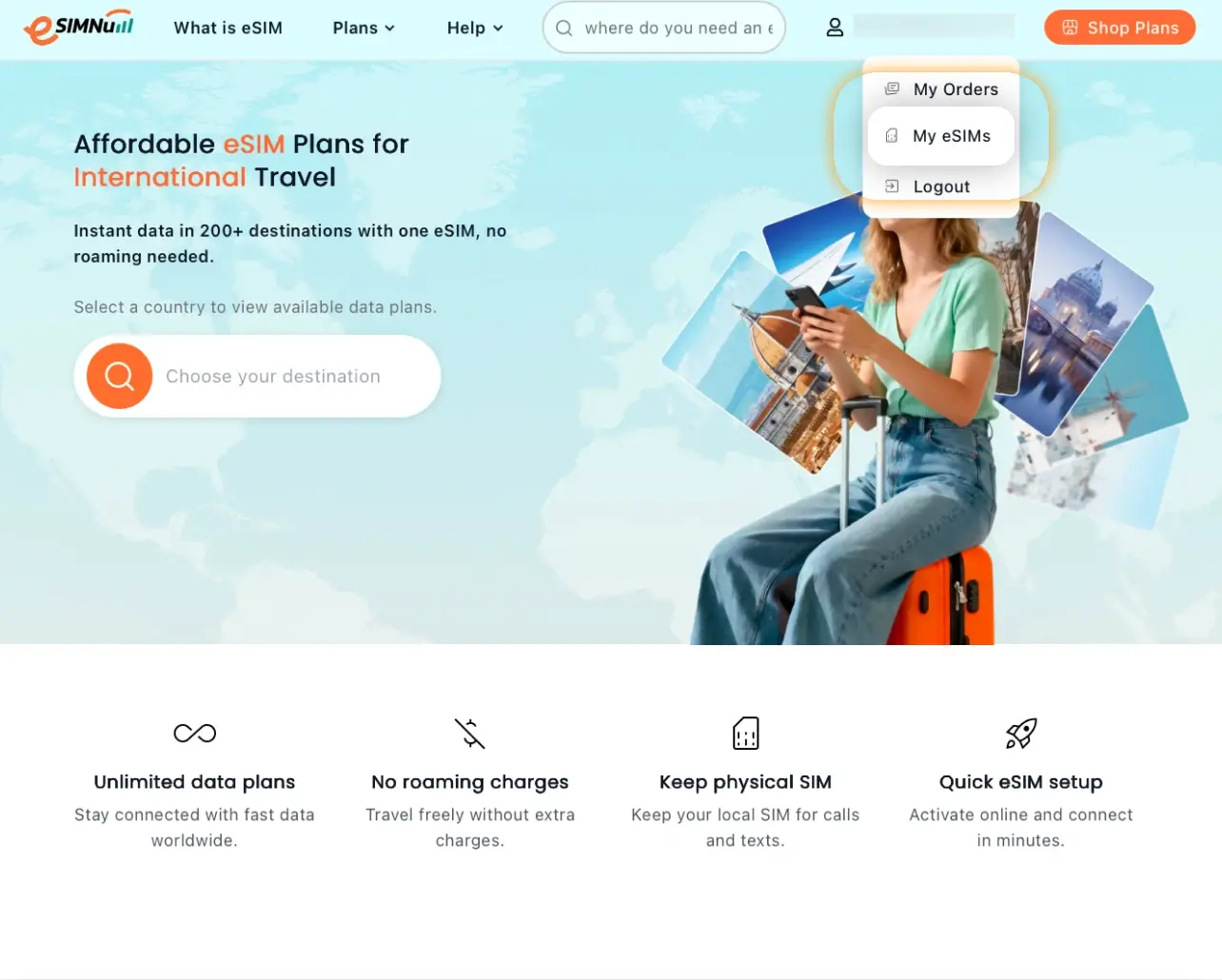
Click the Profile icon in the upper-right corner. If you are not logged in, enter the email address you used to purchase your plan.
-
Open My eSIMs from your account menu.
-
View your data usage and validity:
- Active eSIMNum plans
- Current data usage
- Remaining data balance
- Plan validity period
This allows you to monitor your consumption at any time and manage your usage efficiently.
Control data usage on iOS devices
To reduce data usage on your iPhone, use the following features:
a. Enable Low Data Mode (iOS 13 or later)
-
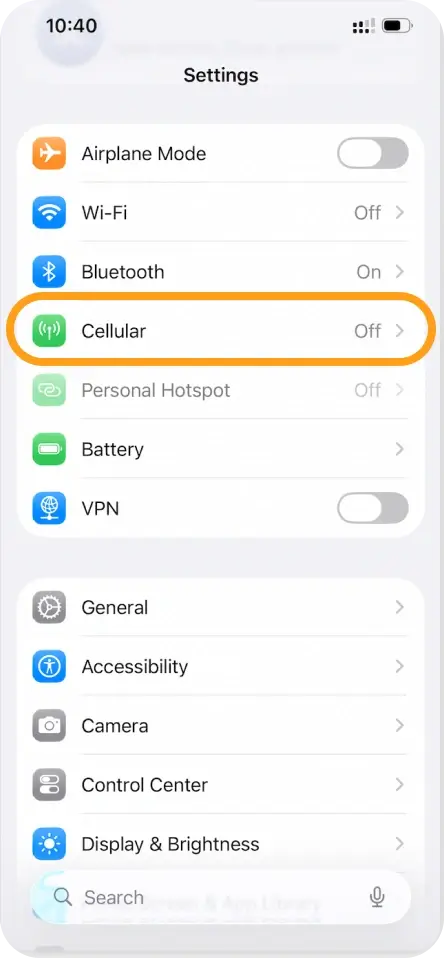
Open Settings → Cellular (or Mobile Data).
-
Select your preferred SIM/eSIM.
-
Tap Data Mode and enable Low Data Mode.
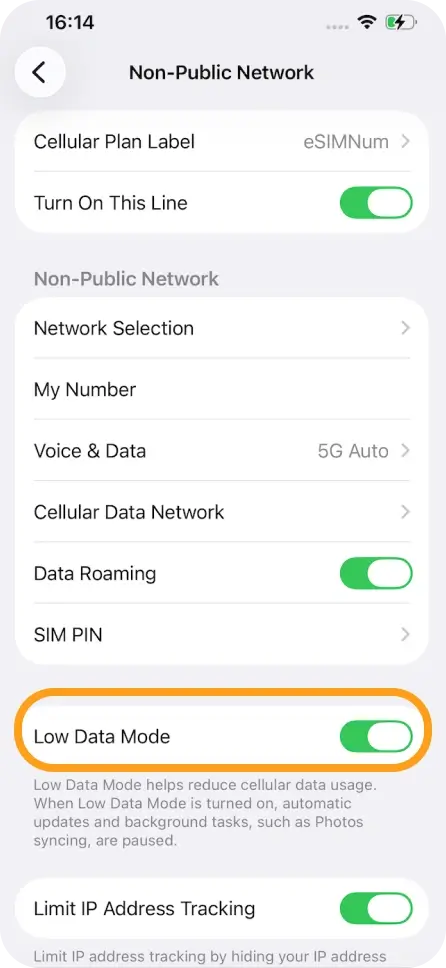
Note: Behavior may vary depending on your carrier.
b. Disable Wi-Fi Assist & iCloud Backup
-
Open Settings → Cellular (or Mobile Data).
-
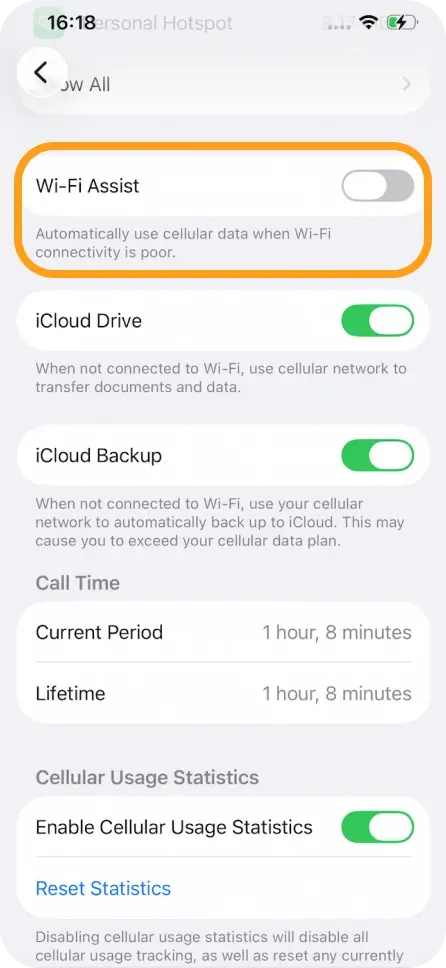
Scroll down and disable Wi-Fi Assist.
-
Disable iCloud Backup if shown under the same section.
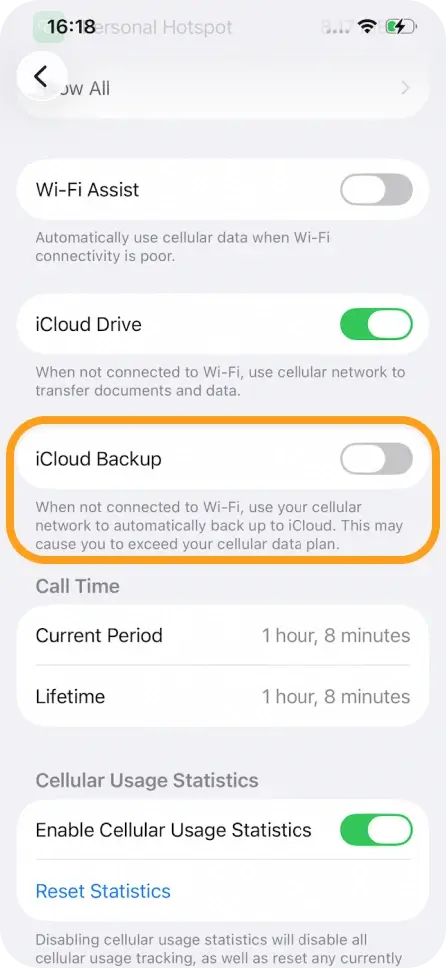
These steps help limit background data usage and prevent unnecessary consumption.
Control data usage on Android devices
Android devices include a Data Saver feature to restrict background app data. Steps differ slightly by device:
For Samsung Galaxy Devices:
-
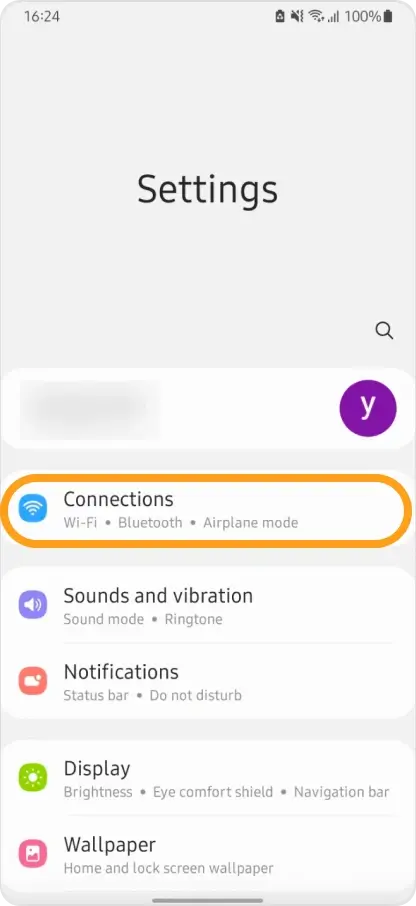
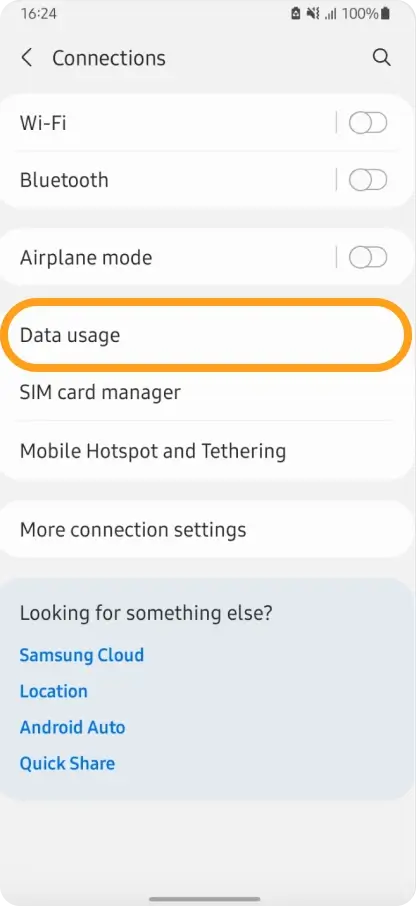
Open Settings → Connections → Data usage.
-
Tap Data Saver and toggle Turn on now.
-
Optionally, allow specific apps to use mobile data even with Data Saver enabled:
- Tap Allowed to use data while Data Saver is on
- Enable the switch next to the apps you want
For Google Pixel Devices:
-
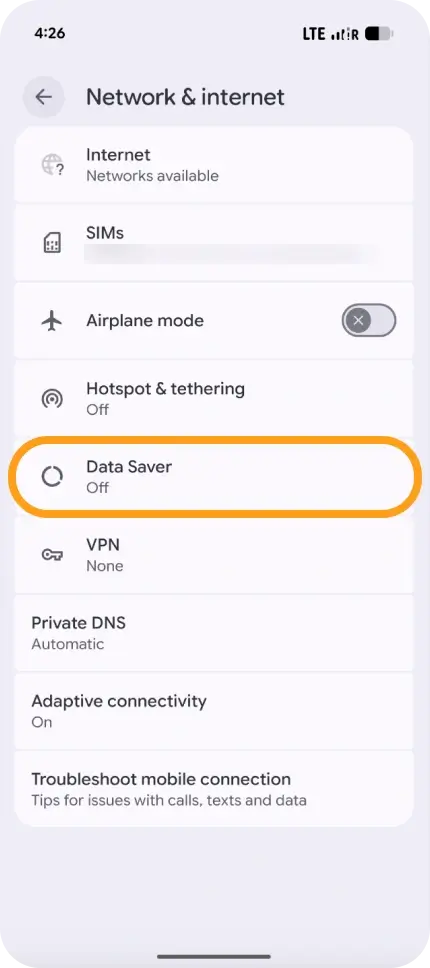
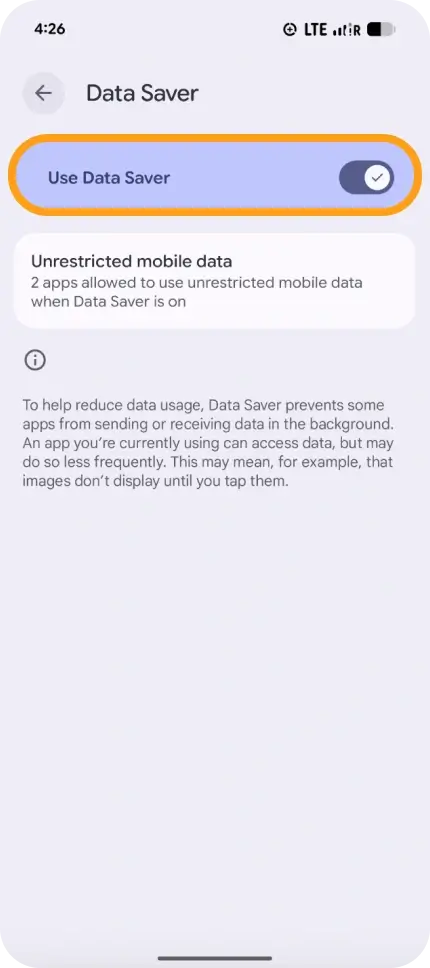
Open Settings → Network & Internet → Data Saver.
-
Toggle Use Data Saver to enable it.
-
Optionally, allow certain apps unrestricted data:
- Tap Unrestricted data
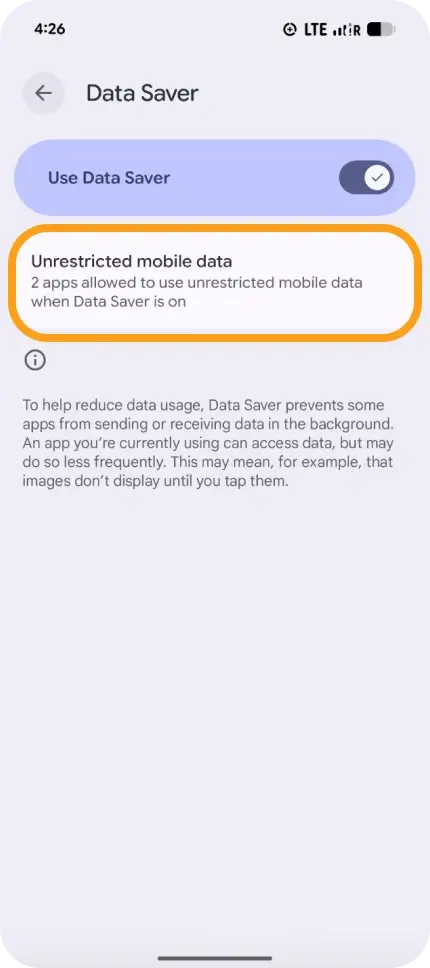
- Enable the switch next to the apps you want
- Tap Unrestricted data
If you have any questions or need assistance with tracking or controlling your data usage, please contact the eSIMNum Support Team — we’re available to help!